|
|
 |
 |
 |
 |
|

|
QuickWayToFolders is a portable application which provides quick folder content access.
The four display possibilites are
- Desktop : Act like your desktop, with possibility of navigate through subfolders
- Small Browser : Act like windows explorer
- Menu : Display folder content in menu
- Multiple Folders Menu : Display multiple folders content in a single menu
Each entry is added to the taskbar notification area (near to windows clock).
| |
| Last Update |
September 18 2024 |
| Version |
1.4.2 |
| Software |
|
| Source Code |
|
| Compatibility |
Windows XP / Seven / Win 8 / Win 10 / Win 11 |
| License |
Freeware under GPL license |
| Language |
C++ |
| Status |
|
|
|
|
 |
 |
 |
 |
|
|
|
|
|
 |
QuickWayToFolders is a portable application which provides quick folder content access.
The four display possibilites are
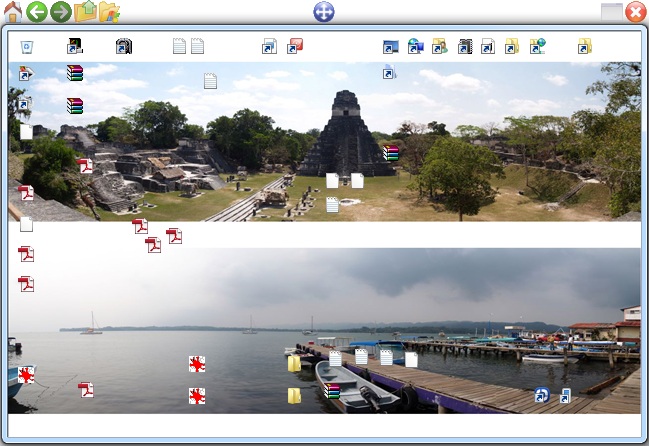
- Desktop : Act like your desktop, with possibility of navigate through subfolders. It reproduce content and icon position of your real Windows desktop.
- Small Browser : Act like windows explorer
- Menu : Display folder content in menu (can be used to act like the Windows Startup Menu)
- Multiple Folders Menu : Display multiple folders content in a single menu
Each entry is added to the taskbar notification area (near to windows clock).
Make QuickWayToFolders portable
Examples of use
- Act like the Windows Startup Menu
- Act like the Windows Startup / Programs Menu
- Replace the Windows Desktop
- Create Multiple Desktops
|
Navigation Toolbar
| Toolbar |
Action |
Keyboard Shortcut |
 |
Home : Go to original folder |
|
 |
Go back |
Backspace or Browser Back |
 |
Go forward |
Browser Forward |
 |
Go to parent folder |
|
 |
Open current folder with Windows Explorer |
|
 |
Move current window |
|
 |
Maximize |
|
 |
Reduce |
|
 |
Close |
|
| |
Refresh content |
F5 or Browser Refresh |
Options
Toolbar
| Toolbar |
Action |
 |
Add new folder shortcut |
 |
Remove currently selected folder shortcut |
 |
Move currently selected folder shortcut up (it will earn one position left in notify icon bar) |
 |
Move currently selected folder shortcut down (it will earn one position right in notify icon bar) |
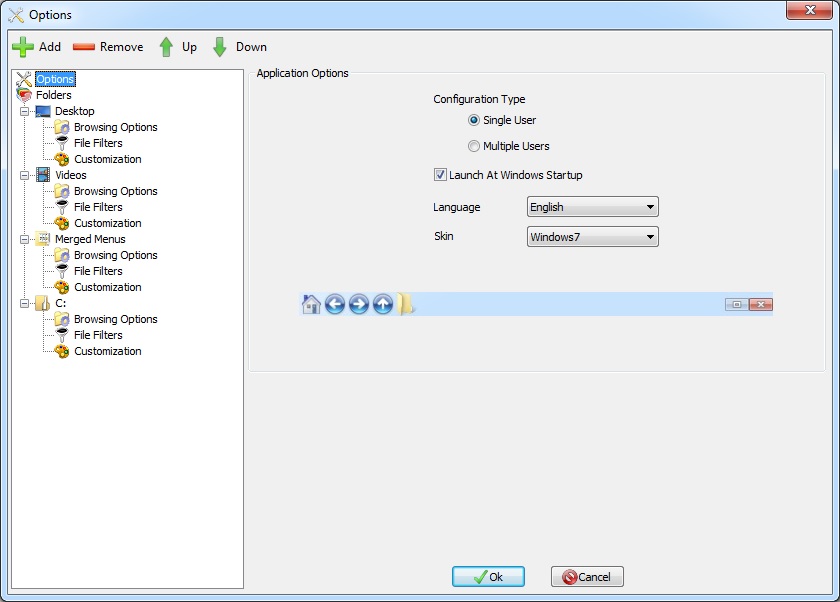
Application Options
Configuration Type : Allow to choose single or multiple user configuration.
- In Single User configuration mode, all configuration files are stored in the application directory
- In Multiple Users configuration, folder shortcuts can be defined separatly by each user
(folder shortcuts configuration file is stored in user local settings path, generaly C:\Documents and Settings\UserName\Local Settings\Application Data\QuickWayToFolders\ )
Launch at Windows Startup : launch QuickWayToFolders at windows startup, for current user or all users, according to Single User or Multiple Users configuration.
Language : Let you choose your language. Language files are stored inside the Languages directory, so you can add your own country language by translating the english.ini file.
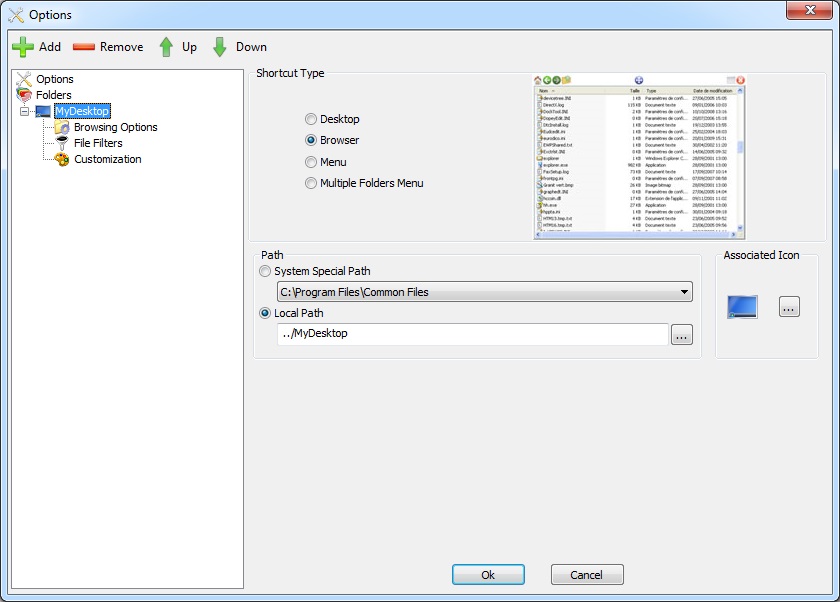
Folder Shortcut Options
Shortcut Type : Let you choose between the four available shortcut types
- Desktop : Act like your desktop, with possibility of navigate through subfolders. It reproduce content and icon position of your real Windows desktop.
- Small Browser : Act like windows explorer
- Menu : Display folder content in menu
- Multiple Folders Menu : Display multiple folders content in a single menu
Path : Shortcut folder path
 |
To be more portable you should use "System Special Path" when possible |
|
You can use relative path like "..\MyFolder" for the Local Path
In this case path is relative to the QuickWayToFolders directory
|
Associated Icon : Icon displayed in the notify icon bar
In case of multiple folders menu options, you manage a folder list instead of a single folder.
Use the "Add", "Remove", "Up" and "Down" buttons to arrange your menu
Browsing Options
Include Subfolders : Display Subfolders
Allow Subfolders Navigation :
- for Menus : Display folder content in a submenu
- for Browser and Desktop : Navigate into folder inside browser
Remember Last Position :
- If checked, after window has been closed, the next display content will be the last browsed folder.
- If not checked, after window has been closed, the next display content will be the home folder content. (Browser and Desktop only)
Auto Hide On Execution : Window close itself after a document opening or file launching
(Browser and Desktop only)
View Type : Type of view used at startup (Browser and Desktop only)
Z-Order : Z-Order of window
Hide ToolBar For Home Folder : Hide toolbar when displayed folder is the home one
Save Icons Positions For Home Folder : remember the home folder icons position (Browser only; and not available for the following view types : list, details and thumbstrip)
Show At Software Startup : when software is started, explorer will be automatically displayed
Start Maximized : first display will be done in full screen
Show / Hide hot key : keyboard shortcut to display or hide browser. This is similar to the "Windows+D"shortcut to display the Windows desktop (Browser and Desktop only)
File Filters
Allow to include or exclude files from folders content
Customization (Browser and Desktop only)
Allow to customize browser appearance.
|
To use a background image in a portable configuration, put your background image in the QuickWayToFolders directory,
and put only the image file name in the "Path" field (Do not specify full path)
"Path" field should only contains something like "MyPortableImage.jpg" |
 |
Background gradiant and background picture will appear only if the option "Use background image for each folder type"
under "Control Panel/System/Advanced/Performance/Settings/Visual Effect" is set. |
Make QuickWayToFolders portable
- First Set "Configuration Type" to "Single User" mode (all configuration files are stored in QuickWayToFolders directory)
- Next use "System Special Path"or relative path for each Folder Shortcut Options (For relative path, path is relative to QuickWayToFolders directory)
- For Desktop/Browser configuration, if you are using a background picture, use relative path for the picture path
Using Menu to act like the Windows Startup Menu
A) If you want to create your own menu not matching the windows one
1) With Windows explorer, create a folder and put your applications shortcuts inside (like the old Windows "Startup Menu" folder content)
2) Under QuickWayToFolders options dialog, click "Add", select "Menu" as shortcut type, and set the path to the folder created at step 1
3) Once done click the "Ok" button and that's done
Of course you can create subfolders to organize your shortcuts !
B) If you want to use the windows start menu folders, and so merge public and per user folders, use the following configuration
1) Open the options dialog, click "Add", select "Multiple Folders Menu view"
2) Thanks to "System Special Path" Add the folders you want; and when you want to merge 2 or more folder (like for the common and your user Startup / Programs)
check the "Merge To Specific Folder" option and specify a name before adding them. Remember to uncheck the option to add other unmerged folders
3) Assume your user folder is upper to the common one : when both files with the same name are found, only the one in the upper folder will be kept.
4) Assume the the "Merge Folders Into Single Menu" option is unchecked !
Click ok and that's done !
Using Menu to act like the Windows Startup / Programs Menu
Windows Startup / Programs menu is easier as the Windows Startup menu as all folders are merged, so you dont have to specify sub groups for your directories.
1) Open the options dialog, click "Add", select "Multiple Folders Menu view"
2) Add the common and your user Startup / Programs to the list thanks to "System Special Path"
3) Assume your user folder is upper to the common one : when both files with the same name are found, only the one in the upper folder will be kept.
4) Check the "Merge Folders Into Single Menu" option
Click ok and that's done !
Replace the Windows Desktop
First create a folder, by the way "MyFolder".
Next, put your data inside (shortcuts, files, subfolders)
Under QuickWayToFolders, option dialog, create a new entry with the "Add" button, and select "Browser"as shortcut type
Specify the folder path (notice: path can be relative to the QuickWayToFolders directory)
Next in browsing options, use the following configuration.
Notices :
- The "Z-Order : Bottom" is required
- You don't need to specify hot key, the "Windows+D" shortcut will bring you to your desktop
Create Multiple Desktops
First create as many folders as wanted desktops : by the way "MyDesktop1","MyDesktop2","MyDesktop3".
Next, put your data inside (shortcuts, files, subfolders)
Under QuickWayToFolders, option dialog, for each desktop,
1) Click the "Add" button, and select "Browser"as shortcut type
2) Next in browsing options, use the following configuration (shortcut key is not mandatory and must be different for each folder)
|
|

|
|
|
|
|
|
|
|
|
|
|
|
|
- Background gradiant and background picture will appear only if the option "Use background image for each folder type"
under "Control Panel/System/Advanced/Performance/Settings/Visual Effect" is set.
- Under Seven, in detailed view, selected column overrides background.
|
|
|
|
|
|
|
|


;)